AB Overlays
Fourteen overlays that sit on top of iRacing while you drive: your inputs and shift lights, a proximity spotter, a live track map, a G-force pad, a grip meter, a lap log, the conditions, a relative, the standings, a fuel calculator, how much pace your tyres are losing, your Twitch chat, a warning for a car stopped on the road ahead, and your pace against the cars in your class. They read the live telemetry iRacing publishes, so there's nothing to install in iRacing and nothing to configure.
On this page
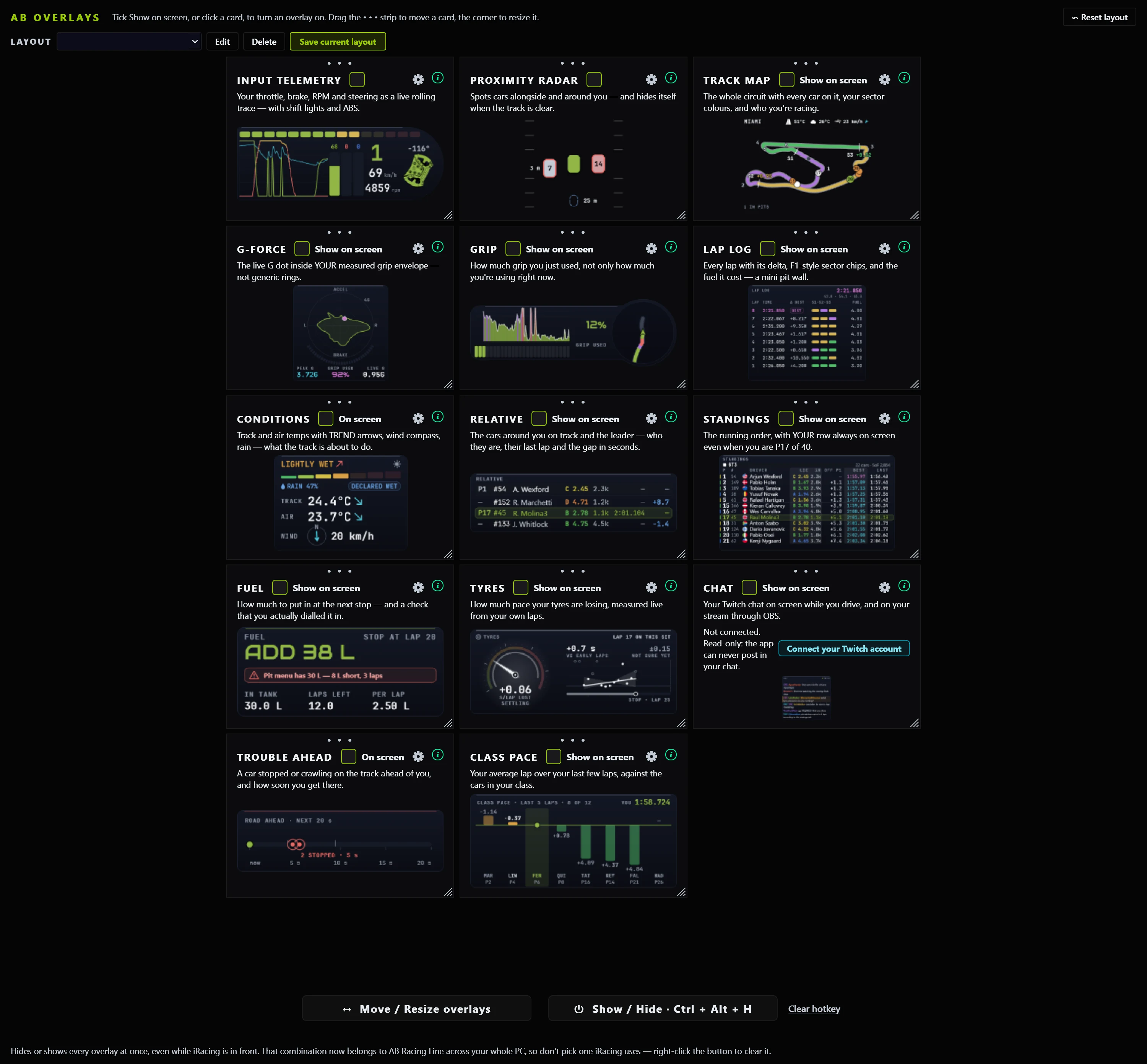
- Open AB Overlays and tick Show on screen on an overlay's card to turn it on. It comes back every time you start the app.
- Sit in the car, press Move / Resize overlays, then drag and resize them against your real view. Press it again when you're done.
- They show while you're in the car and hide in the garage, the menus and replays, on their own.
- Want them on your stream? Each one can go into OBS: see Put your overlays on stream.
Start hereThe basics
An overlay is a small always-on-top window that AB Racing Line draws over iRacing. Start the app, start driving, and the overlays you've switched on appear. They follow iRacing on their own: they show while you're in the car (pit road included, because that's exactly when the fuel call matters) and stay hidden in the garage, in iRacing's menus and during a replay. You never have to remember to turn them off. And if another program's window covers one while iRacing is in front, the app puts the overlay back on top.
Everything on every overlay is measured from your own car in the session you're driving. Where a number can't honestly be shown yet, the overlay shows a dash or says what it's waiting for, rather than an estimate that looks like a fact.
Step by stepSet up your overlays
Turn on the ones you'll look at
Open AB Overlays. Every overlay has a card showing what it looks like. Tick Show on screen beside an overlay's name to turn it on; untick it to turn it off (clicking the card's picture does the same). An overlay streams to OBS either way. The i on a card explains the overlay without leaving the app.
Set each one up your way
In Move / Resize mode (next step) every overlay shows a small cog in its top-left corner. Click it for that overlay's settings, in a panel beside it: how much of its background shows, and what it shows. The Standings choose their columns, Input Telemetry hides the items you don't use, the Track Map can carry your own logo, Grip and G-Force share one choice of colours, the Relative shows one to five cars either side, and Class Pace chooses how many laps and cars. Each overlay below says what its cog holds. (The cog on a card in the AB Overlays tab is a different one: it's for OBS.)
Arrange them against your real view
While you drive, overlays are locked: clicks pass straight through them to iRacing, so an overlay over your mirror can never steal a click. To move them, sit in the car and press Move / Resize overlays on the AB Overlays tab. Every overlay you've switched on gets an outline:
- Drag anywhere on an overlay to move it.
- Drag its bottom-right corner to resize it. The contents scale with it, so bigger means bigger text, not more empty space.
Press the button again when you're happy. Positions and sizes are saved as you go; Reset layout puts everything back if you lose one off the edge of a screen.
Save the layout for this car
Press Save current layout and give it a name. Pick it from the LAYOUT dropdown any time to put everything back. See Saved layouts.
Set a show / hide hotkey
A keyboard shortcut that hides and shows every overlay at once, even while iRacing is the active window. See The show / hide hotkey.
ArrangingSaved layouts
A layout that works in a GT3 can bury the mirrors in a prototype, and a triple-screen arrangement is wrong on a single screen. So you can save an arrangement by name and switch between them:
- Arrange the overlays how you want, press Save current layout and give it a name.
- Pick it from the LAYOUT dropdown any time to put everything back.
- Edit loads a layout and unlocks the overlays so you can adjust it; changes write back to that layout as you make them.
- Delete removes one you no longer want.
- A layout saved while you're in a car belongs to that car: get back into that car and it loads itself, even if you'd moved things since. While you're arranging, it waits until you lock them. You can still pick any layout by hand; the app warns you if it was saved for a different car.
ArrangingThe show / hide hotkey
Sometimes you want the screen clean: a screenshot, or a passenger watching. Click the Show / Hide button on the AB Overlays tab and press the combination you want. It works while iRacing is the active window, and both ways: pressed while the overlays are on screen it clears them; pressed while they're hidden it brings them back, including when you're out of the car, which is how you get your overlays during a replay. To clear the hotkey, use the Clear hotkey link under the button.
- It must be a combination: Ctrl, Alt or Shift plus a key. A bare letter would be taken from every other program on your PC, so it's refused.
- Don't pick something iRacing uses. Once set, that combination belongs to AB Racing Line across the whole PC. If another program already owns it, the app tells you.
- Keyboard only. A wheel or button-box button can't be used: Windows doesn't offer those as system-wide shortcuts.
The fourteen overlaysInput Telemetry
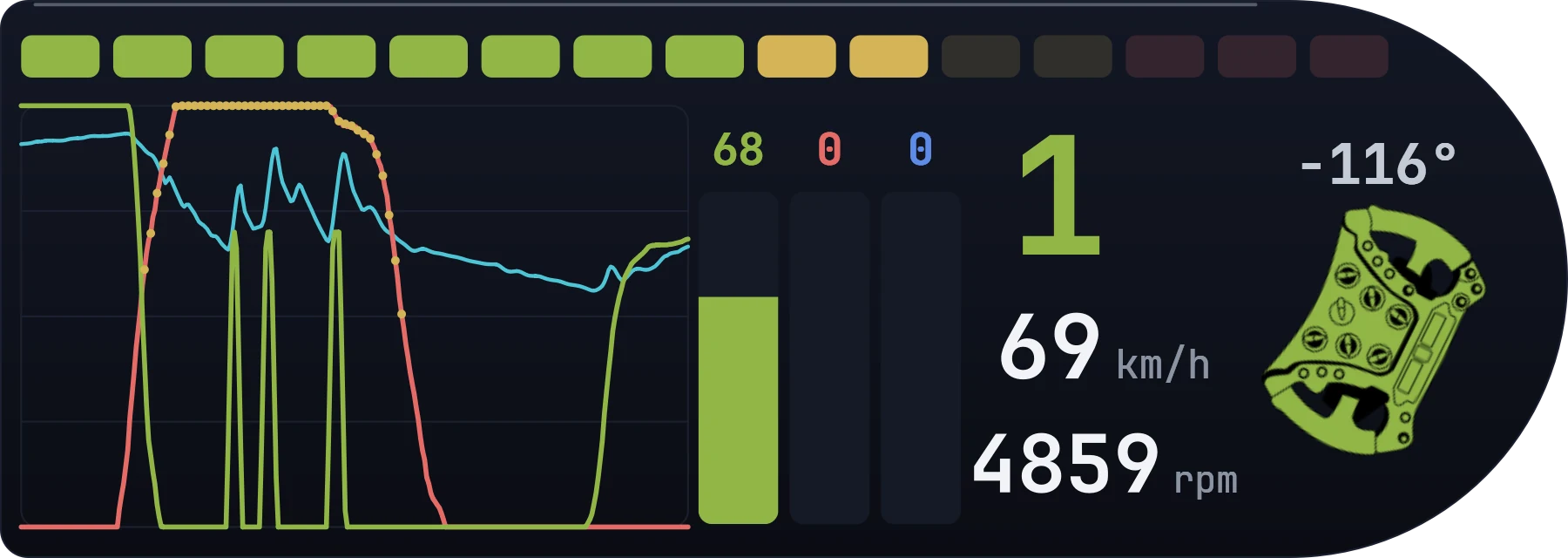
A live dash strip showing exactly what your hands and feet are doing.
- Rolling traces: throttle (green), brake (red) and RPM (cyan). The left axis is throttle and brake as a percentage, the right axis is RPM up to your car's redline.
- ABS shows in yellow on the brake trace, broken into segments: ABS pulses on and off, so a solid line would misstate what the car did.
- Pedal bars for throttle, brake and clutch, with the live percentage above each.
- Shift lights run across the top and flash at the car's own published shift point, and flash all cyan whenever the pit limiter is on.
- The wheel turns with your real steering angle, with the angle in degrees beside it, and gear, speed and RPM alongside.
Speed follows your Display Units setting. The overlay's cog (Move / Resize mode) holds three things:
- SHOW ITEMS: untick any piece you don't use (the shift lights, the traces, the throttle, brake or clutch bar, the gear, the wheel, the steering angle, speed or RPM) and it disappears. A hidden piece keeps its place, so ticking it again puts it back where it was.
- ARRANGE ITEMS: drag or resize any single piece, or nudge it with the arrow keys. RESET ITEMS puts them back.
- SHIFT RPM BY GEAR: your own shift-light point for each gear, for this car.
The fourteen overlaysProximity Radar
A top-down spotter for the cars you can't see.
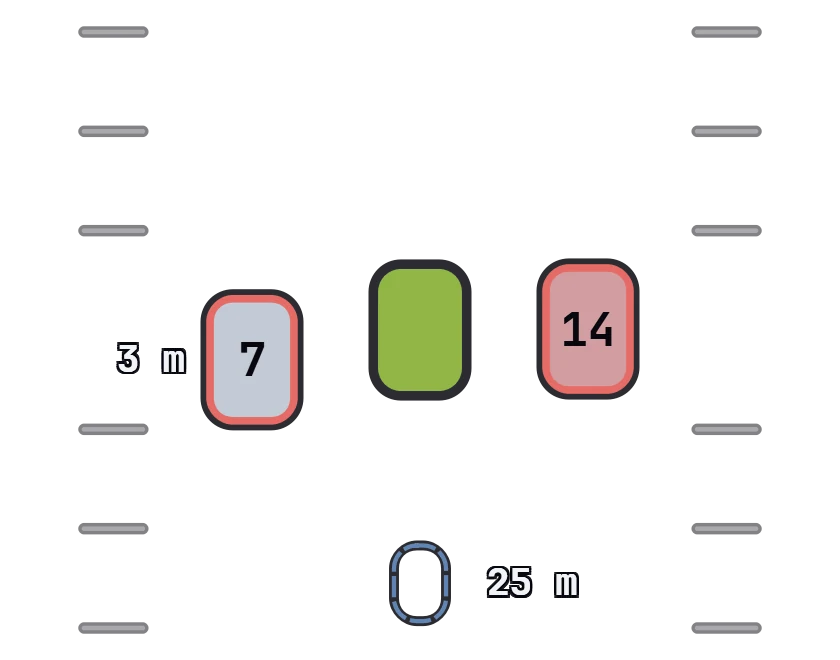
- Nearby cars are placed by their real gap to you along the track, about 30 metres either side on a road course, class-coloured and numbered. You're the green car in the middle.
- On ovals the reach is measured in time, not metres, so it stretches with speed: at Daytona you need warning of a car a second away; at Martinsville you don't.
- Left and right come from iRacing's own spotter, the same signal that calls "car left" in the sim. When someone is genuinely alongside, that side flashes red with CAR LEFT, CAR RIGHT or 3 WIDE.
- It hides itself when nobody is near, and reappears the instant a car closes in.
The fourteen overlaysTrack Map
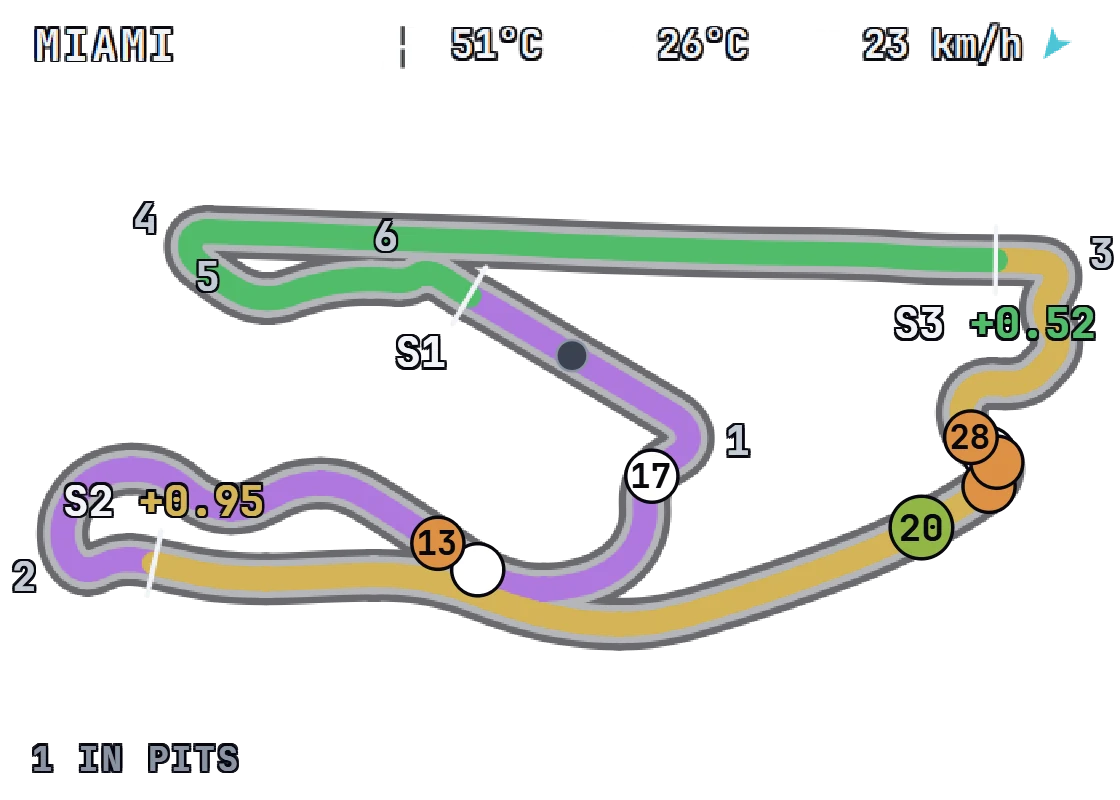
A live map of the lap. It draws the circuit from your own driving, so it works at any track with nothing to download: it says "Building track map…" until you've completed a lap, then remembers that track.
- Every car on track, class-coloured and numbered, with you in green.
- Each sector is coloured by how you're doing there: purple when you hold the session's fastest sector, green when your last time there was your personal best, yellow when it wasn't. A small figure shows how far off the session-fastest your best is.
- Cars you're battling (within about a second) get a pulsing ring and their gap in seconds, with an arrow: red if they're closing on you, green if you're catching them.
- Cars that run off track are flagged, and the ring flashes so you can see who it is.
- Cars in the pit lane become small grey dots, with one "N IN PITS" note.
- No label ever lands on another. Your own number and the gaps come first; a label with no room is left out rather than drawn over something.
Your own logo: in the overlay's cog, YOUR LOGO… picks a PNG or JPG and shows it inside your car's circle, with a green ring so it still says "you". Every other car is unchanged. REMOVE LOGO takes it out.
The fourteen overlaysG-Force
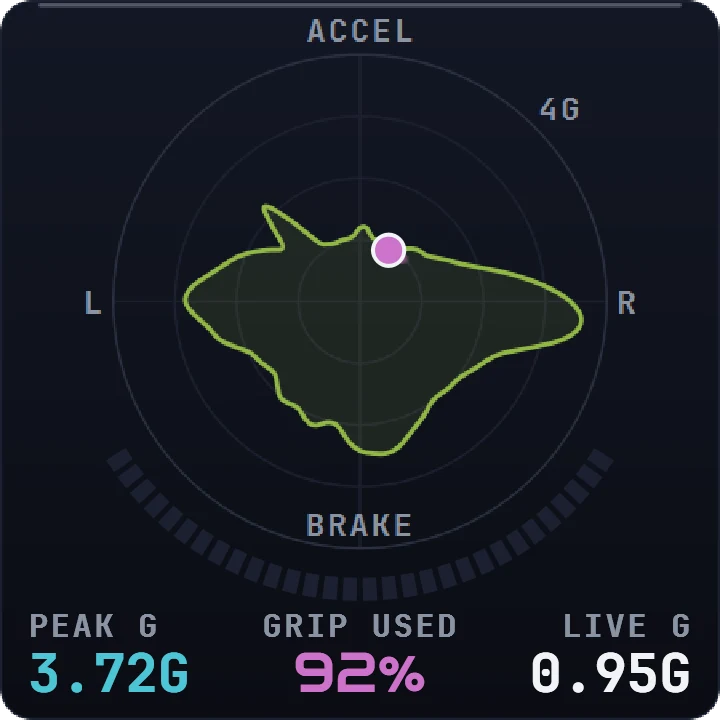
A friction-circle pad that knows what you have actually done.
- The green shape is your grip envelope, measured live. It starts empty and grows as you genuinely use grip, one direction at a time. It's never a theoretical circle.
- The dot is your car right now, with a tail: braking at the bottom, acceleration at the top, cornering to the sides.
- The headline number is how much of your own proven grip you're using in the direction you're loaded. It reads "--" until enough driving is recorded.
- The colours are yours to choose (see Grip, below): one setting for both overlays, so they always agree.
- It resets when a new session starts, or when you change car or track.
The fourteen overlaysGrip
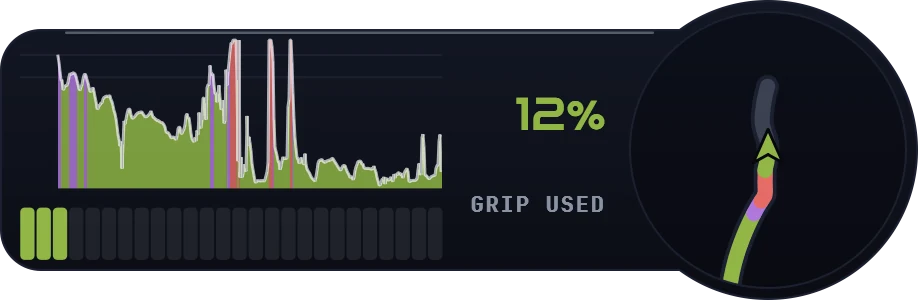
The G-Force pad answers "how much grip am I using?" at the moment you're far too busy to look. This one keeps the answer on screen long enough to read it.
- The trace is the last few seconds of grip use, so you can look after the corner and still see what happened in it.
- The bar on the right is right now: green below 75%, purple from 75 to 90, red above 90 to start with, the same colours as the G-Force pad.
- It's measured against your own envelope, and the trace is redrawn as the envelope grows, so a lap spent cruising never reads as a lap at the limit.
- The mini map shows the road just ahead and behind you, coloured by the grip you used.
- The cog sets how many seconds of history to show (TRACE).
Your colours: GRIP COLOURS in the cog of Grip or the G-Force pad sets where the colours change (75% and 90% to start with) and which three colours, from the overlays' own palette. It's one setting for both, so they always agree; RESET goes back to the start.
The fourteen overlaysLap Log
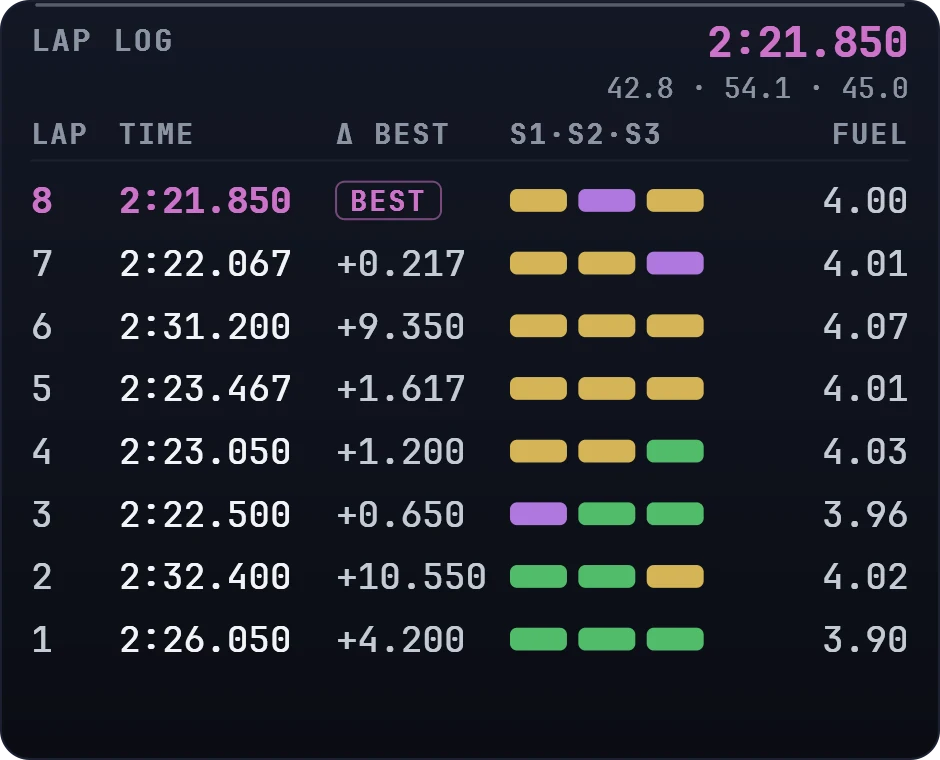
A pit-wall lap history rather than just a list of times.
- Each completed lap with its time and the gap to your session best; the best row says BEST.
- Three sector chips per lap: purple for the session-fastest sector, green for a personal best, yellow when you were off it. The same timing as the Track Map.
- The fuel that lap burned: the same per-lap figures the fuel call is worked out from, so the Lap Log, the Fuel overlay and the Live Pit Wall always show the same figure for the same lap.
- A lap iRacing threw out for an incident is struck through and marked INV: it never becomes your best lap or your record. Its sectors before the incident still count, as in iRacing's own timing.
- A dash where a number can't honestly be shown: an out-lap, an in-lap, a lap with a pit stop or a reset in it, or a lap with no valid time.
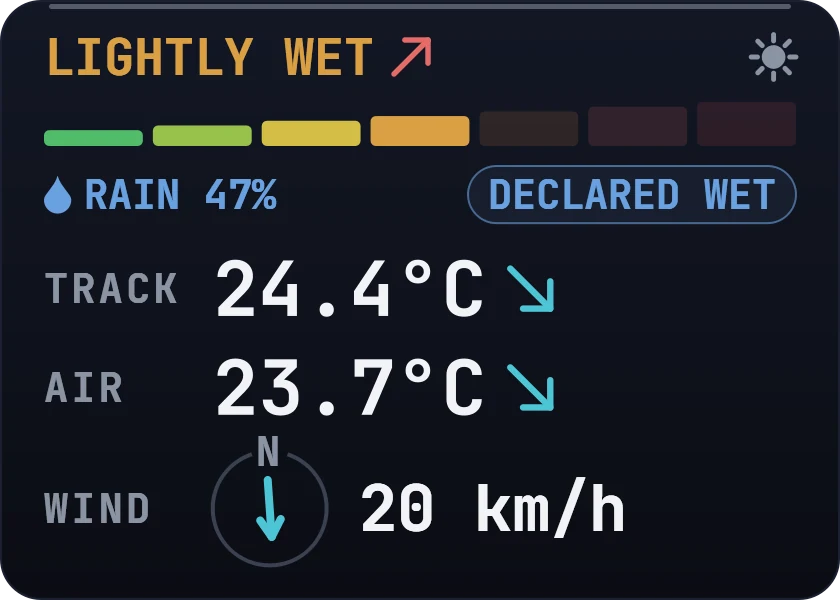
The fourteen overlaysConditions
For races long enough that the weather changes.
- Track and air temperature with a trend arrow when they're genuinely moving: amber rising, cyan falling. A cooling track means grip and tyre pressures are about to change.
- A wind compass, the arrow pointing where the wind is blowing to, with the speed.
- The track's state, in iRacing's own words: Dry, Mostly dry, Very lightly wet, Lightly wet, Moderately wet, Very wet or Extremely wet, in a colour from green to red. Seven bars fill as the track gets wetter, and an arrow shows when it has been getting wetter or drier.
- Rain, on a line of its own, because rain and the state of the track move separately.
- DECLARED WET when iRacing has declared the session wet. That is iRacing's own flag, not a guess from the track's state.
- The time of day as a small sun, a sun on the horizon at dawn or dusk, or a moon.
Nothing here is a forecast: it reports what the conditions are doing now, and which way they're moving.
The fourteen overlaysRelative
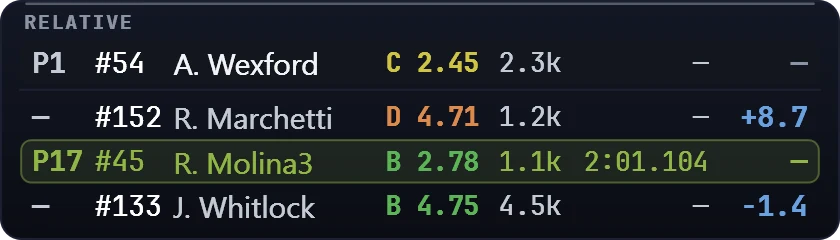
Who's about to be on top of you, and how long you have.
- The leader, the cars around you on the track, and you. A car two laps down right behind you matters more to your next corner than whoever is running second.
- Each driver's licence and safety rating, iRating and last lap. Make the overlay narrower and the columns drop away in a fixed order (iRating first, then the licence, then the last lap), so the name and the gap always stay.
- You choose how many cars either side, one to five, under DRIVERS in the overlay's cog.
- The gap is coloured by lap: white on your lap, red a lap or more ahead of you, blue a lap or more down. The
+or−already says which side of you they are. - Cars in the pits are dimmed and marked PIT.
A dash instead of a gap means there's no lap time yet to turn it into seconds, as on an out-lap.
The fourteen overlaysStandings
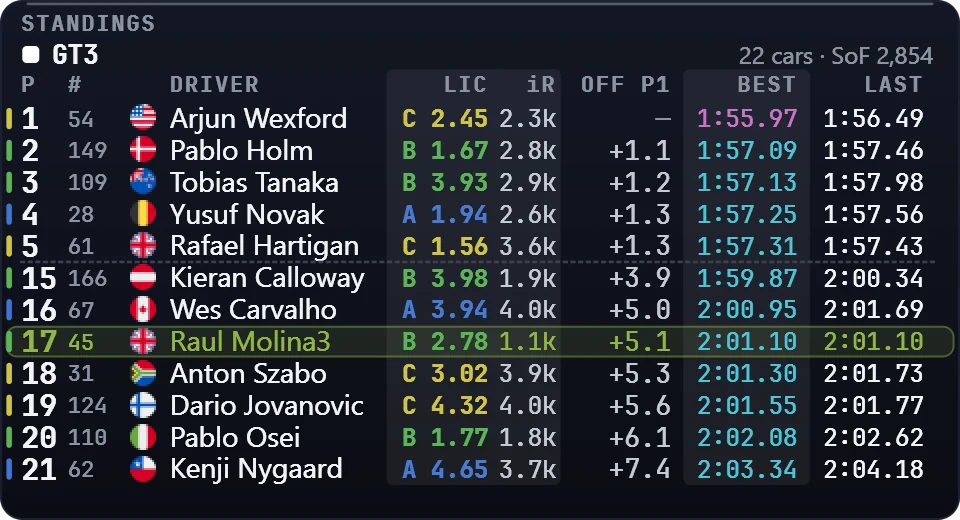
- The leaders, then the cars around you, with each driver's best lap and last lap. Outside a race iRacing doesn't always send other drivers' last laps, so some rows can show a dash there.
- Best lap: the fastest in each class is pink and every other best lap cyan, so the best and last lap columns never read as one. There's a clear gap between the gap, best lap and last lap columns, and a faint band behind every other number column, so you can see where one ends and the next begins.
- Choose the columns under COLUMNS in the overlay's cog: car number, flag, licence and safety rating, iRating, incidents, gap, best lap and last lap. Position and name always show. Incidents read the way iRacing writes them ("4x"), with a dash when iRacing doesn't say.
- Leave off the class bar or the time left under ALSO SHOW, in the same panel. With the class bars off, a thin line still marks where one class ends.
- Lap time decimals: 1, 2 or 3, under LAP TIME DECIMALS. It starts at 2. Three decimals need the overlay a little wider.
- The window sets the text size, not the columns. Untick a column and the names get the room, in full where they fit; resize the window to make the text bigger or smaller. With Best lap ticked, the text is a little smaller in the same window, to fit the extra column; widen the overlay to bring the size back.
- The gap column is the gap to the leader in a race. A car a lap or more behind the leader of its class shows 1L, 2L and so on, dimmed. Outside a race it reads OFF P1: how far each driver's best lap is off their class leader's, and nobody is shown as lapped.
- Your row is always shown. A dotted line marks where the order jumps from the leaders to your group.
- Grouped by class in multiclass racing, with each class's car count and strength of field, and positions within the class. A driver with no position yet sits at the end of their own class.
- Drivers in the pits are dimmed and marked PIT. A blue W before a driver's name means they're on wet tyres. The time left in the session sits at the top right.
The fourteen overlaysFuel
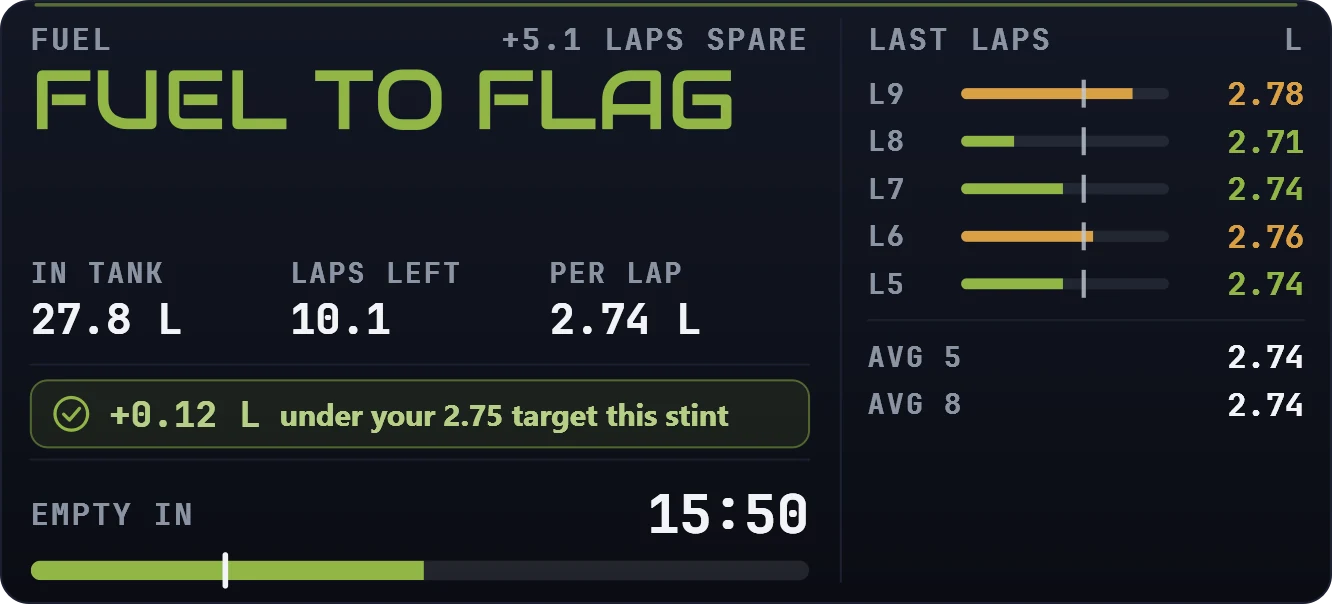
The number you type into the pit menu.
- ADD x litres: what to take at the next stop, which isn't the same as the total still needed to reach the flag. At the last stop it takes only what reaches the flag.
- It reads the pit menu back. iRacing broadcasts how much fuel you've dialled in, so the overlay compares it with what you need ("Pit menu has 30 L, 8 L short, 3 laps").
- It warns when fuel isn't ticked in the pit menu. Litres dialled in with the fuel box unticked add nothing at the stop, so when you need fuel and the box is unticked it says so: amber while the stop is laps away, red when it's close.
- MEASURING n/3 LAPS until your burn is steady. A call built on one lap moves every lap.
- A race set by laps counts the laps to the flag, and with both a lap count and a clock, whichever ends the race first.
- The end of a timed race: when the clock reaches zero, iRacing races on to the flag, and so does the call: the leader finishes at the first line crossing after the clock runs out, everyone else at their next one. It shows PRE-RACE before the green and CHEQUERED FLAG after.
- In practice it shows laps of fuel instead.
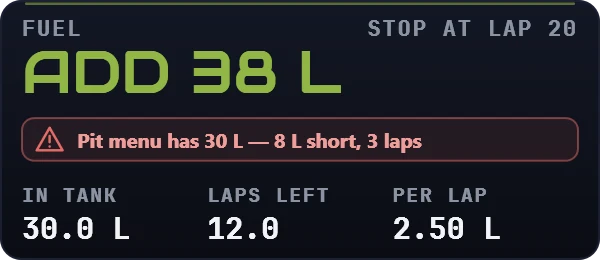
Four more parts, each off until you turn it on in the overlay's cog. The overlay grows to make room for each one you turn on:
- LAST LAPS, 5 or 10: the fuel each of your last laps used, newest at the top. They're the laps the fuel call counts, so no out-laps, in-laps or laps with a reset in them. With a fuel target set, a lap at or under it is green and one over it amber.
- AVERAGES: your average over the last 5 and the last 10 laps. A lap run under a full-course caution is marked with a yellow dot and left out of them.
- TIME TO EMPTY: how long the fuel in the tank lasts at your current rate, with a bar for your fuel since the last stop. In a race, a white mark on the bar is the fuel you need to reach the flag, and the bar turns amber while you're short of it.
- FUEL TARGET: a fuel figure a lap to aim for, kept for each car and track layout, with a running plus or minus for the stint. Plus means you've used less than your target.
The fourteen overlaysTyres
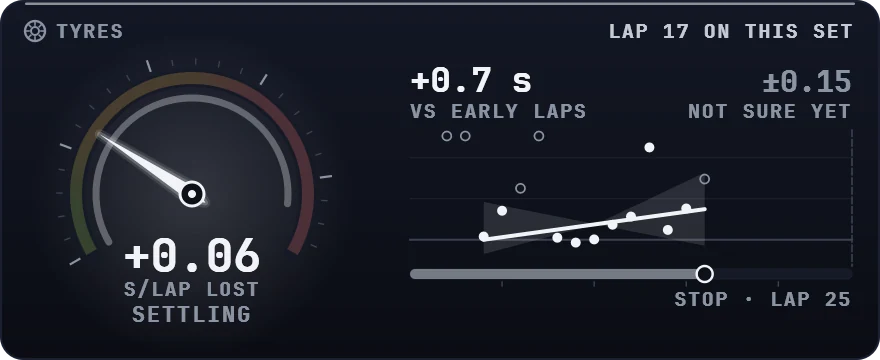
iRacing only sends tyre temperatures and wear when you stop in your pit box, not while you drive. So this overlay works out how much pace your tyres are losing from your own lap times.
- The fuel effect comes out first, worked out for your car. A car gets quicker as it burns fuel, and on a GT3 that can hide the tyre loss completely.
- The gauge is seconds lost per lap: green while the tyres hold, amber as they go, red when they're going off. The word under it says whether the figure has settled.
- Above the chart: how much slower your latest laps are than your early laps on this set. Once the figure has settled, the number on the right says where that leads by your next stop (or the flag), for example "+1.2 s IN 8 LAPS". Until then it shows the plus-or-minus and NOT SURE YET.
- Every lap on the set is a dot, with the trend through them. A hollow dot is a lap left out of the figure, such as one with an off in it, or one too far off the trend to count.
- It needs five clean laps on a set before it gives a figure, and a new set always starts from zero: fresh tyres haven't lost anything yet.
- At a car and track layout you've driven before, your earlier runs there sharpen the figure once the set has its five laps.
- In your pit box it shows each tyre's temperature across the tread, and the tread left.
The fourteen overlaysChat
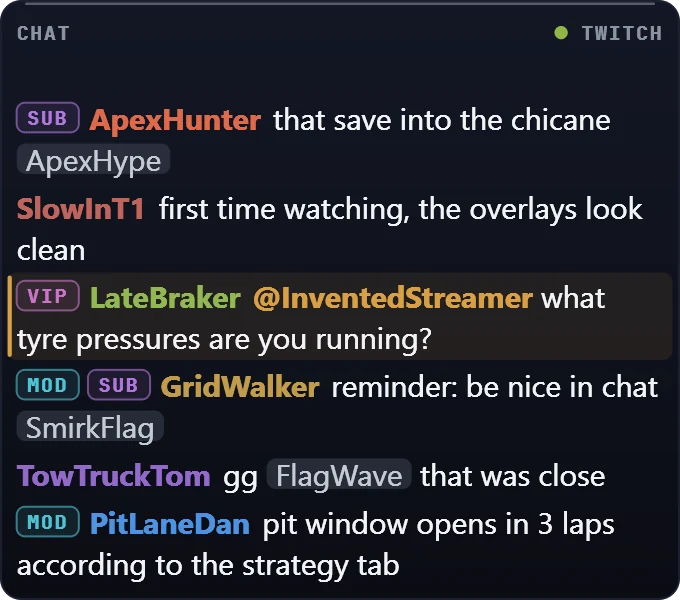
Your stream's Twitch chat, readable at speed, on screen and on your stream.
- Connect your Twitch account on the Chat card on the AB Overlays tab. The app shows a short code, Twitch's own page opens with it filled in, and you approve it there. The app asks Twitch only for permission to read your chat: it can never post in it.
- The newest message is at the bottom. Each name is in the viewer's own Twitch colour, with MOD, VIP and SUB tags; emotes show as their names; a message that mentions you gets an amber bar, so a question stands out.
- A message a moderator deletes disappears here too, so nothing removed from your chat stays on your stream.
- It shows whenever iRacing is running, in the car or not, so you can read chat between sessions. The show/hide hotkey hides it with the others.
- Its cog (Move / Resize mode): how many lines it holds (the window's height sets the text size), Fade old messages so a quiet chat leaves a clean screen, and Clear background (text only).
- Chat stays in memory only, for up to 24 hours, and is never sent to us. Disconnect your Twitch account removes the app's access at Twitch and deletes the sign-in from your PC.
The fourteen overlaysTrouble Ahead
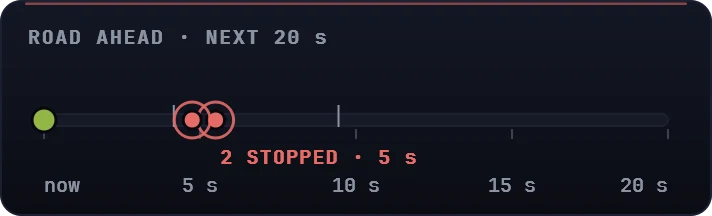
A warning for trouble you can't see yet: a car stopped round the next corner, or one crawling back to the pits.
- The line is the next 20 seconds of track. You're the green dot at "now"; each car in trouble is a pulsing red dot at the seconds until you get there, sliding towards you as you drive. The label names the nearest one, for example "2 STOPPED · 5 s".
- STOPPED means under 20 km/h. CRAWLING means under a third of the speed the field normally does at that spot, learned from the cars around you as the session runs, so a slow corner never counts as trouble.
- How soon is timed on your own recent laps through those metres, using the quickest, so it can only err towards sooner. Before you have a lap it uses the field's pace there.
- It stays quiet in qualifying (the cars are ghosts there), before the green and after the flag, under a full-course caution, and while you're in the pits. Cars in the pit lane never count, and a car just out of the pits counts only if it has stopped.
- It sits on screen with the road empty while the way is clear. To have it appear only when there's trouble, and hide again once you're past, pick WHEN THERE'S TROUBLE under SHOW in its cog.
The fourteen overlaysClass Pace
Who is really quicker than you right now, which one lap time can't tell you. Class Pace takes each car's average over its last few clean laps and shows it as a gap to yours.
- The green line is your pace. A car quicker than you rises above it and a slower one drops below it, with the gap to a hundredth of a second. Your own average is at the top right.
- Only the cars in your class, each with its name and its position in class underneath.
- You're always on the board, however far down the order you are.
- Its cog: LAPS, how many laps make the average (2 to 20, starting at 5); CARS, how many cars to show (3 to 20, starting at 8); WHICH CARS, FRONT for the best-placed cars in your class or AROUND ME for the cars placed either side of you; and FASTEST, LEFT (to start with) or RIGHT, the side the fastest car sits on.
- Left out of an average: laps that touched pit road, laps with a full-course caution out, a lap it didn't see from line to line, and a lap more than 3% slower than that car's usual lap (a spin, a stop on track). Traffic and ordinary mistakes stay in: that's what pace is made of.
- A dash until a car has 2 clean laps. A dimmer bar is a figure on fewer laps than you asked for, or a car in the pits. Until you have 2 clean laps yourself, the gaps are to the fastest car and the line goes grey.
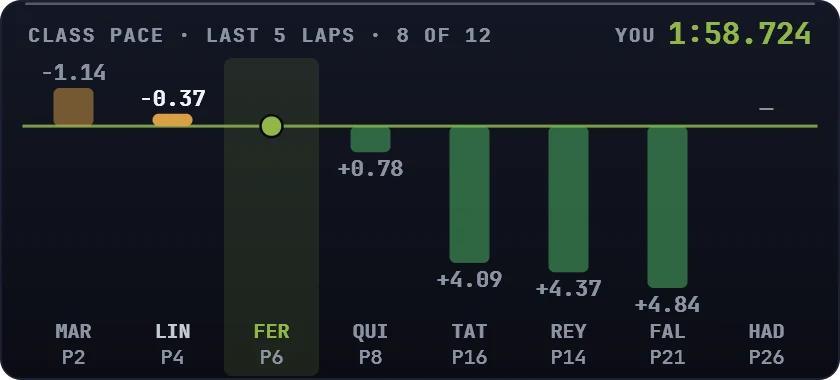
Many cars in a narrow window can't all carry a number: the ones nearest your pace keep theirs, and widening the overlay brings the rest back.
Good to knowWhat needs a few laps first
- Track Map: one complete lap, to draw the circuit. It remembers each track afterwards.
- G-Force: enough driving for a grip envelope worth comparing against.
- Fuel: three racing laps (MEASURING n/3). A pit stop doesn't throw the measured rate away.
- Tyres: five clean laps on a set, and a few more before the figure settles. A new set starts again from zero.
- Lap Log and sector colours: a completed lap, and a completed sector.
- Relative gaps in seconds: one lap time.
- Trouble Ahead: one lap of your own to time how soon you reach each spot (until then it uses the field's pace), and a few cars through each part of the track to learn its normal speed.
- Class Pace: two clean laps for each car before it gets a figure, and two of your own before the gaps are to you.
Good to knowWhat the overlays don't do, and why
- No traction-control light. iRacing publishes when ABS is working but nothing for traction control, only the dial setting.
- Left and right only when the sim knows (see the radar).
- Sector colours are you against this session, not iRacing's own timing screen, which answers a different question. Neither is wrong.
- No exclusive fullscreen, for any overlay tool. Use borderless.
- Trouble Ahead can't say left or right: iRacing doesn't send which side of the track a car is on.
- Chat is Twitch only for now, and read-only: the app can never post in your chat.
- Class Pace can't correct for fuel: iRacing doesn't send other cars' fuel, so a car near the end of a stint looks a little quicker than one that has just filled up. Nor does it send their incidents, so a lap iRacing threw out for going off track still counts if it has a time. Your own laps are treated the same way, so every car is measured alike.
- Nothing is guessed. Every figure is measured from what has already happened. Where an overlay looks ahead (the fuel to the flag, the time to empty, the Tyres overlay's "by your next stop"), it's your own measured rate carried forward, and the Tyres figure only shows once it has settled.
StreamingOn your stream
Every overlay can also go into OBS as a Browser Source, placed per scene, separately from where it sits on your monitor: the cog on its card copies the address. Your on-screen overlays are untouched, and the address only works on your own PC. Change an overlay's settings on screen and its OBS copy follows at once. The step-by-step is in the tutorial Put your overlays on stream.
On stream, a small, faint "AB RACING LINE" mark sits just under each overlay, never on top of it and never on your own screen. Untick Show "AB RACING LINE" on stream in the OBS panel on any card to turn it off for all of them.
QuestionsQuestions
My overlays don't show in the garage or during a replay
The Chat overlay says "Twitch not connected" or "sign-in expired"
An overlay disappeared behind another window
live_feed.log, in %APPDATA%\AB Racing Line), which helps if you
report it.